ImageAssist Now Integrates with ModMed: A Step-by-Step Guide to Getting Set Up
Fri Jun 19 2026
ImageAssist is now approved and live in the ModMed integration marketplace. Your patient schedule syncs automatically, all ModMed patients are searchable in ImageAssist, and clinical photos stay organized without any double entry. This guide walks through exactly how to get connected.
ImageAssist Now Integrates with ModMed: A Step-by-Step Guide to Getting Set Up
By The ImageAssist Team
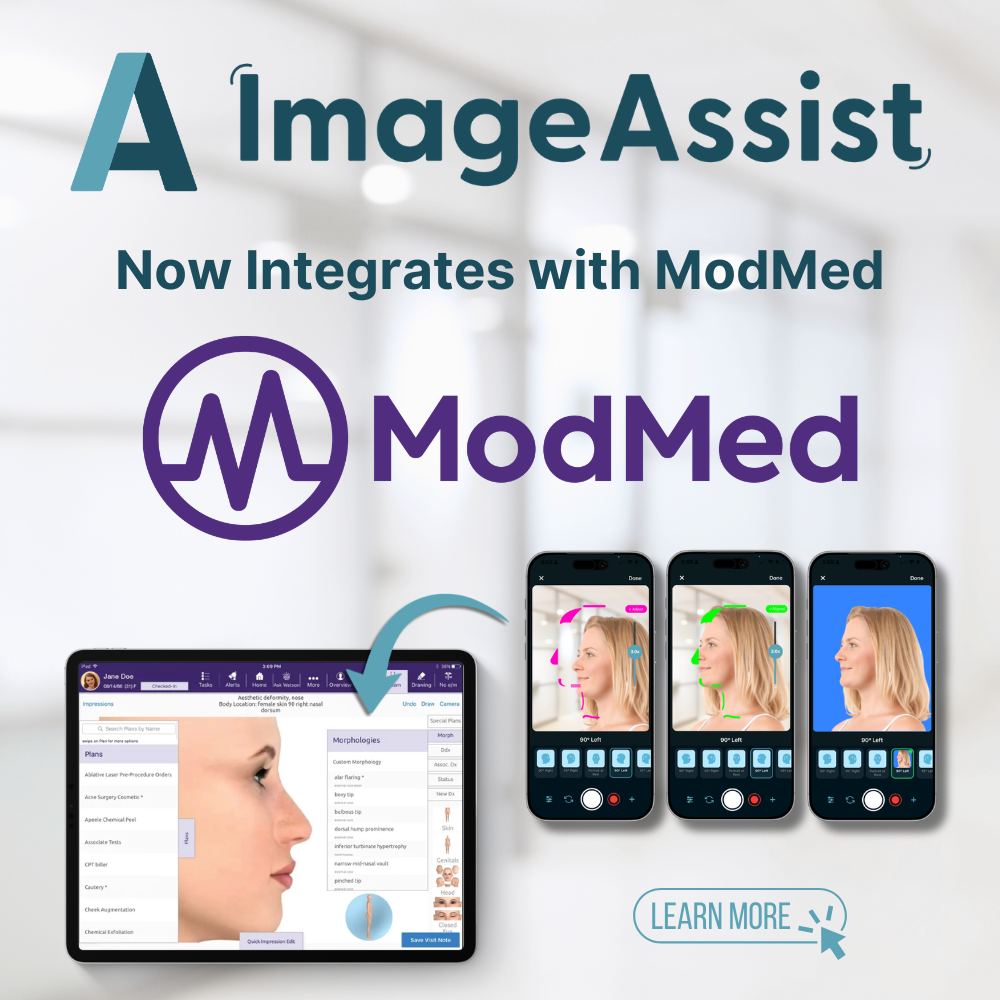
We're excited to announce that ImageAssist is now an approved ModMed integration partner. If your practice runs on ModMed — whether you're in dermatology, plastic surgery, or another specialty — you can now connect ImageAssist directly to your practice management system and eliminate the manual steps between your patient schedule and your clinical photography workflow.
See ImageAssist in the ModMed App Marketplace.
Here's what that means in practice: your ModMed patient calendar syncs automatically into ImageAssist. Every patient in ModMed is searchable in ImageAssist. No duplicate entry. No manual patient setup. You open ImageAssist, your patients are already there, and you start capturing standardized clinical photos — organized, HIPAA-compliant, and ready for the medical record.
This guide covers what the integration does, what changes day-to-day for your team, and exactly how to get set up.
WHAT THE IMAGEASSIST + MODMED INTEGRATION DOES
Once connected, ImageAssist and ModMed work together in two key ways:
1. Your ModMed patient calendar populates ImageAssist automatically
The day's patients load into ImageAssist without any manual input. Your team opens the app, sees the day's schedule pulled directly from ModMed, taps the patient's name, and starts capturing. No searching, no typing in patient names, no risk of mixing up records.
2. All ModMed patients are searchable in ImageAssist
Even for patients not on today's schedule — follow-ups, returning patients, records reviews — any patient in your ModMed system is instantly findable in ImageAssist. Clinical photos are organized under the correct patient profile automatically.
The result is a fully connected workflow: ModMed handles your scheduling and practice management, ImageAssist handles your clinical photography, and the two systems stay in sync without any manual work from your team.
HOW TO GET CONNECTED: THREE STEPS
The integration setup involves three steps — two on the ModMed side, one on the ImageAssist side. Total time from start to finish is typically a few business days, depending on ModMed's response time for enablement.
STEP 1: Email ModMed to request integration enablement
The first step happens on your end, directly with ModMed. Send an email to:
practicesolutions@modmed.com
Let them know you'd like to enable the ImageAssist integration. The ModMed Practice Solutions team will manage the activation on their side and send you setup instructions.
Note: This is a standard request that ModMed's team handles — you don't need to provide any ImageAssist credentials or technical details at this stage. Just let them know you want to enable the connection.
STEP 2: Generate your API credentials in ModMed
Once ModMed has enabled the integration for your account, they'll provide instructions for generating your API credentials inside your ModMed environment. This gives you a username and password specific to the ImageAssist connection.
You'll share those credentials with the ImageAssist team (or enter them directly in the ImageAssist app — see Step 3). These credentials are what allows ImageAssist to securely read your ModMed patient schedule and records.
STEP 3: Enter your credentials in ImageAssist
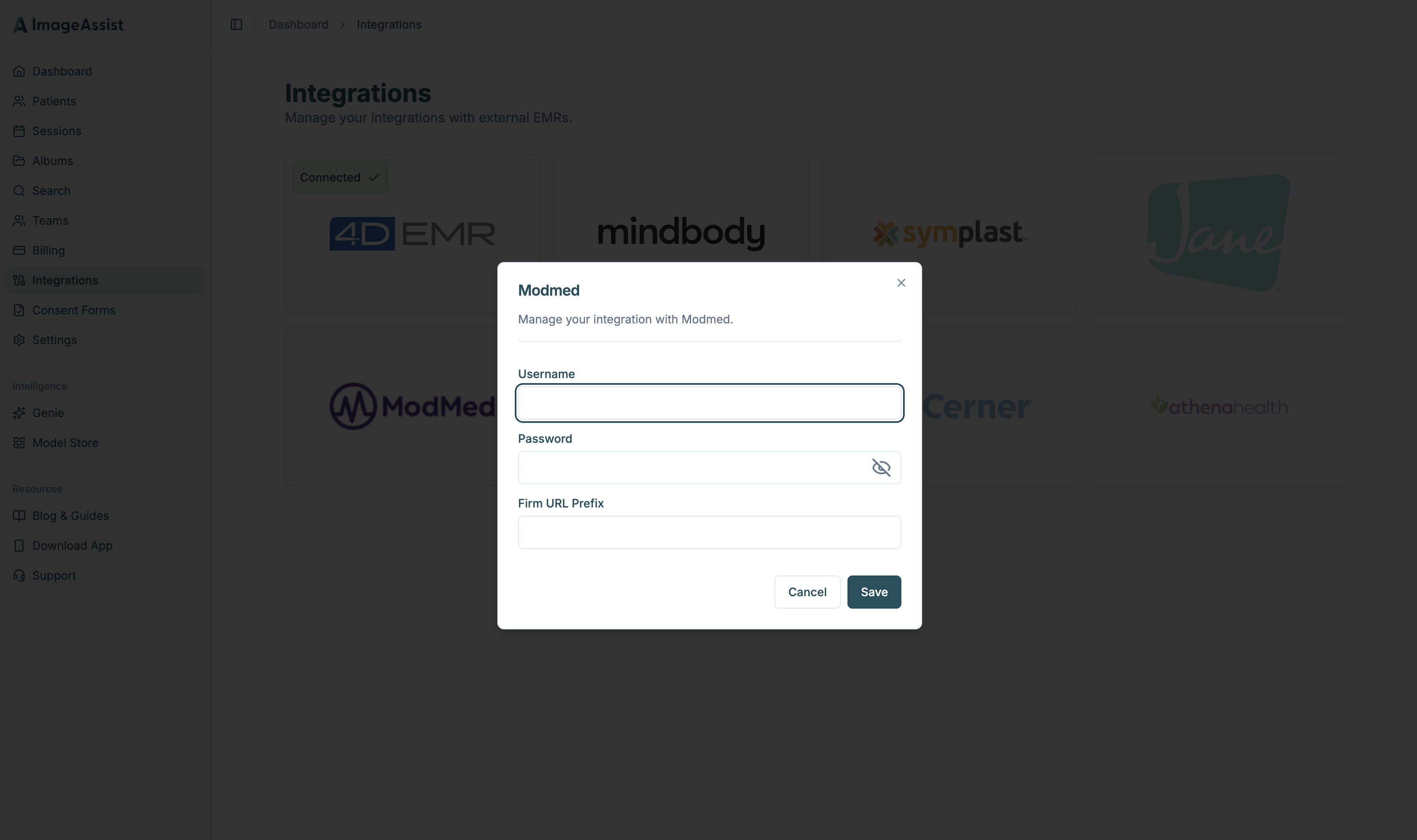
In the ImageAssist app, navigate to the Integrations page. You'll see the ModMed integration listed. Enter the username and password generated in Step 2, and save.
That's it. ImageAssist will immediately begin pulling your ModMed patient schedule. The next time your team opens ImageAssist, the day's patients will be there waiting.
If you run into any issues at any point in setup, contact the ImageAssist support team and we'll help you through it — reply to this email or reach out at support@imageassist.com.
WHAT CHANGES DAY-TO-DAY
For your clinical team, the workflow becomes noticeably simpler:
Before the integration: a staff member would manually add each patient to ImageAssist, or search for them by name and risk duplication. Between patients, they'd have to switch back and forth between ModMed and ImageAssist to verify patient names and visit details.
After the integration: your team opens ImageAssist. Today's ModMed patients are already listed in order. They tap the patient, take the photos, and move on. ModMed patients are also fully searchable in ImageAssist for any records-based work or follow-up sessions.
No double entry. No manual patient setup. Just clinical photography organized exactly the way your practice runs.
WHO THIS IS FOR
The ImageAssist + ModMed integration is particularly valuable for:
Dermatology practices using ModMed who need consistent, standardized before-and-after documentation for skin treatments, laser procedures, and conditions management.
Plastic surgery practices who photograph patients pre- and post-operatively and need photos organized cleanly under the correct patient record in ModMed.
Aesthetic medicine practices where before-and-after galleries drive consultations and patient retention — and where getting photos into the right place quickly matters.
Any practice that has been manually managing patient photography separate from ModMed and wants to close that gap.
READY TO GET CONNECTED?
Reply to this email or contact us at support@imageassist.com. We're happy to walk you through setup on a quick call.