AI Smile Simulator for Dental Practices: Show Patients the Result Before They Say Yes
Thu Nov 05 2026
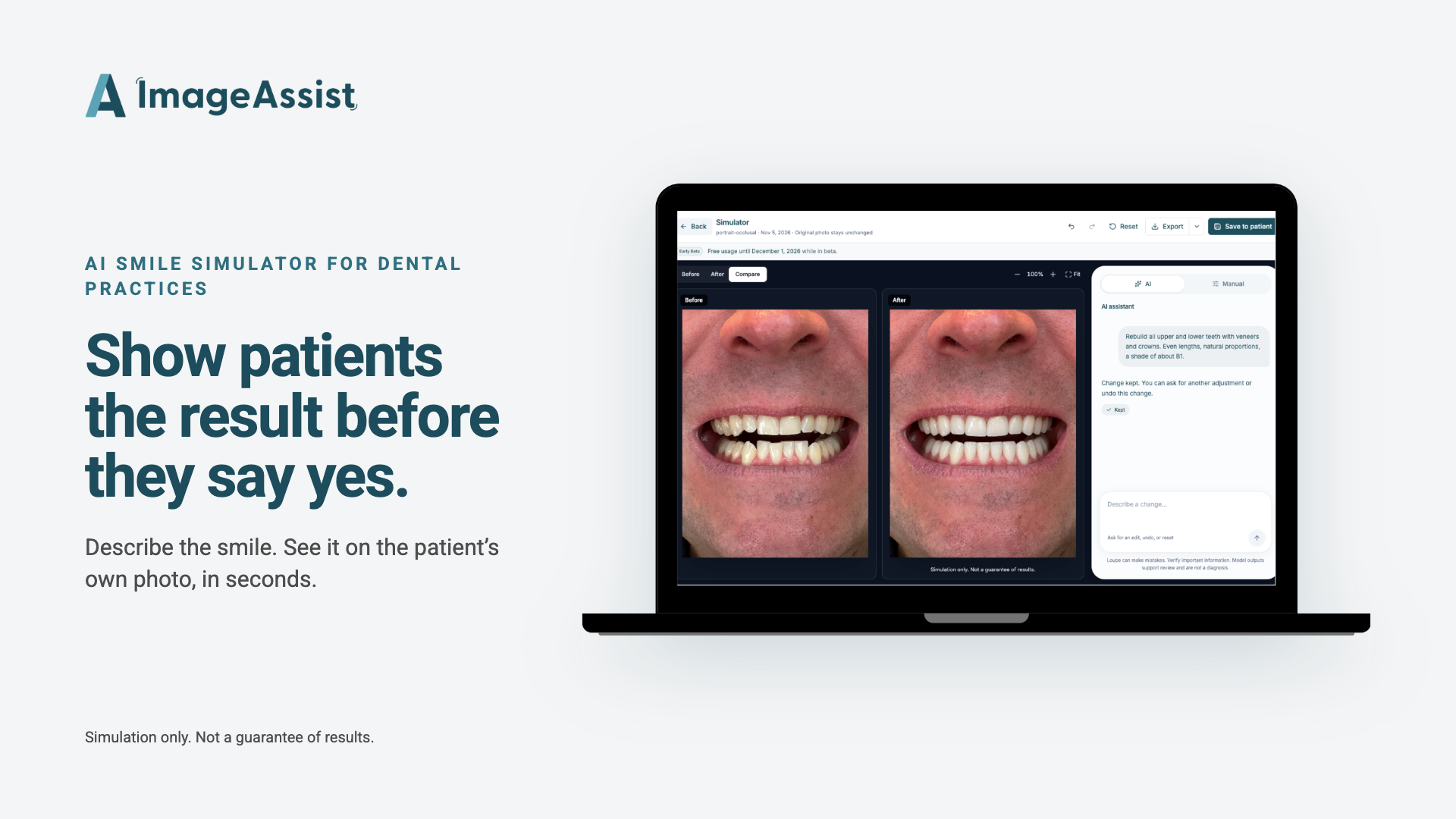
Patients decide with more confidence when they can see the plan. ImageAssist's new AI Simulator shows them their own smile with Invisalign, veneers, whitening and more, right in the consult.
Patients say yes when they can see the result. Now your dental practice can show it in the consult.
ImageAssist's AI Simulator takes your patient's own photo, applies the treatment you describe, and shows the result on screen. It works for the cosmetic treatments you talk about every day: whitening, Invisalign, bonding, veneers, crowns, bridges, implants and dentures.
How the Simulator works
1. Capture the patient's smile in ImageAssist.
2. Describe the change in plain language. For example: "Straighten the crowded front teeth" or "Whiten the teeth about three shades."
3. See the result on the patient's own photo. Fine-tune it with the manual edit tools.
4. Talk through the plan with the patient. Keep the image with their photos in ImageAssist.
Treatments you can show
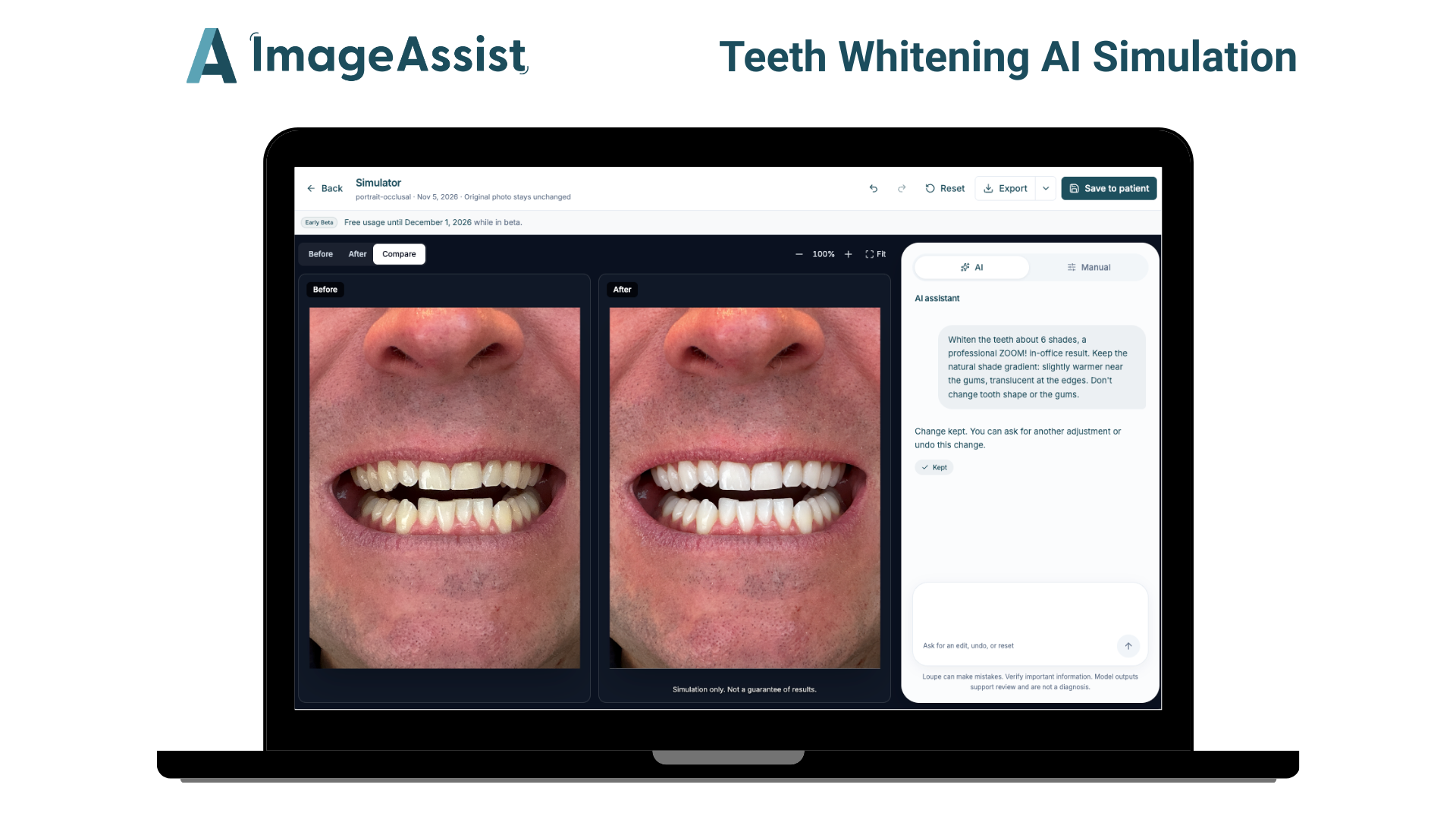
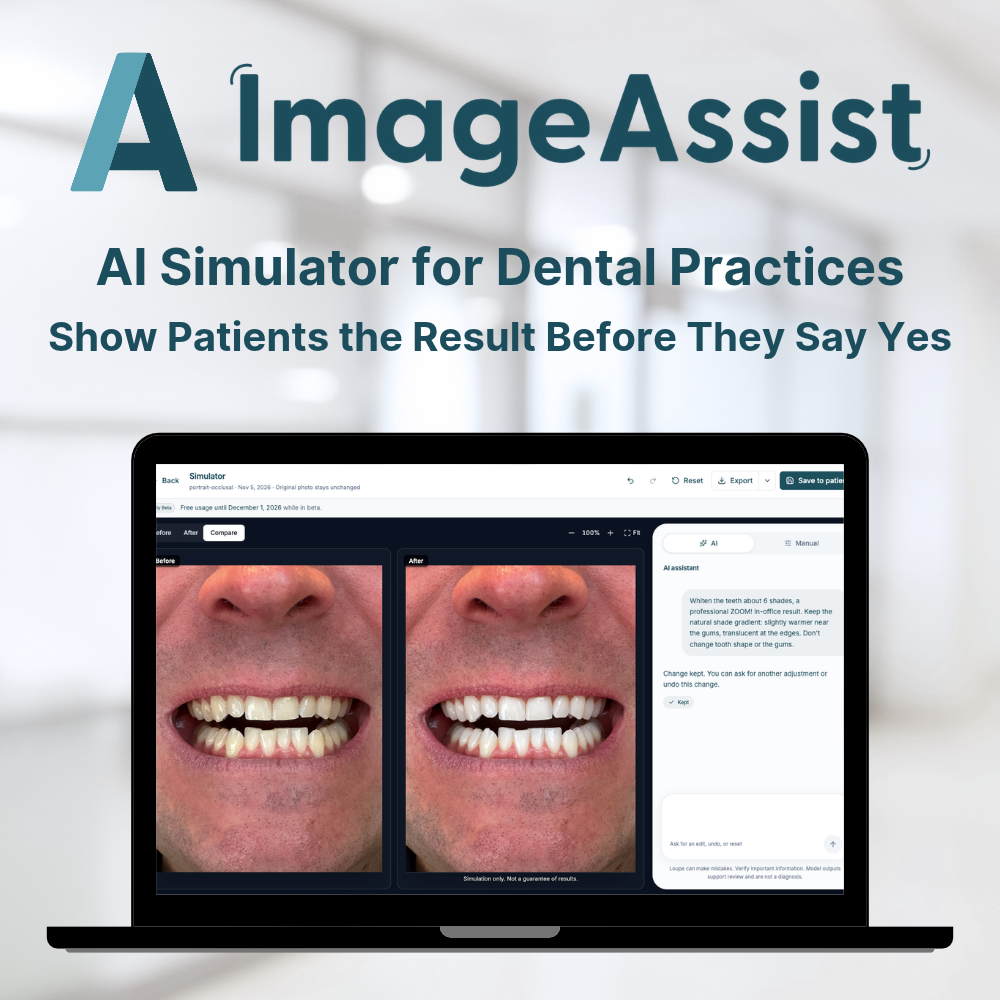
Teeth whitening. Whitening changes color only. Tooth shape, position and gums stay exactly as they are. Show a subtle take-home result or a bigger in-office jump.
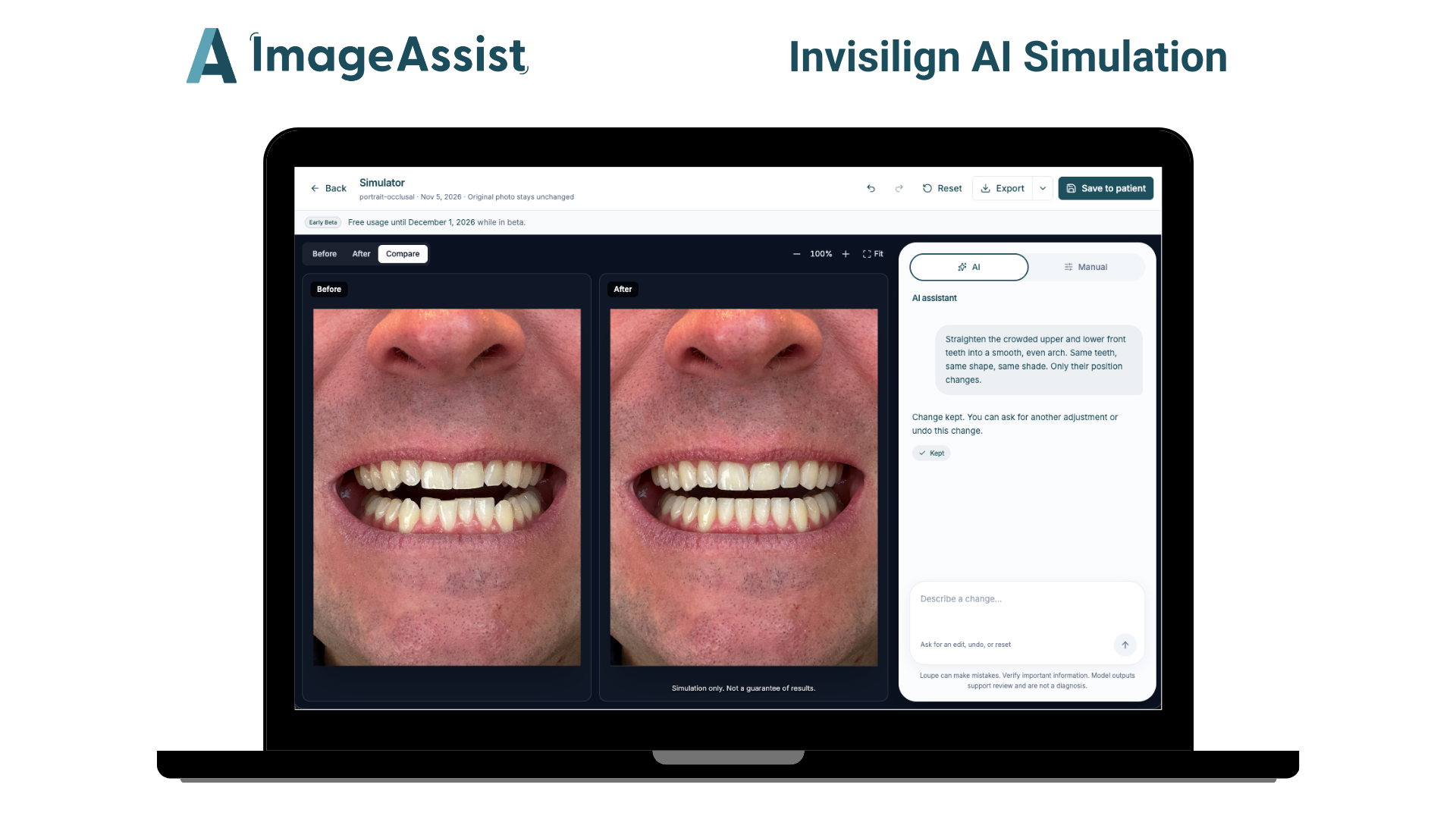
Invisalign. Invisalign moves teeth. It doesn't reshape or whiten them. The Simulator keeps the same teeth, the same shape and the same shade, and changes only their position. Show crowding, gaps, a shifted midline, or flared front teeth in profile.
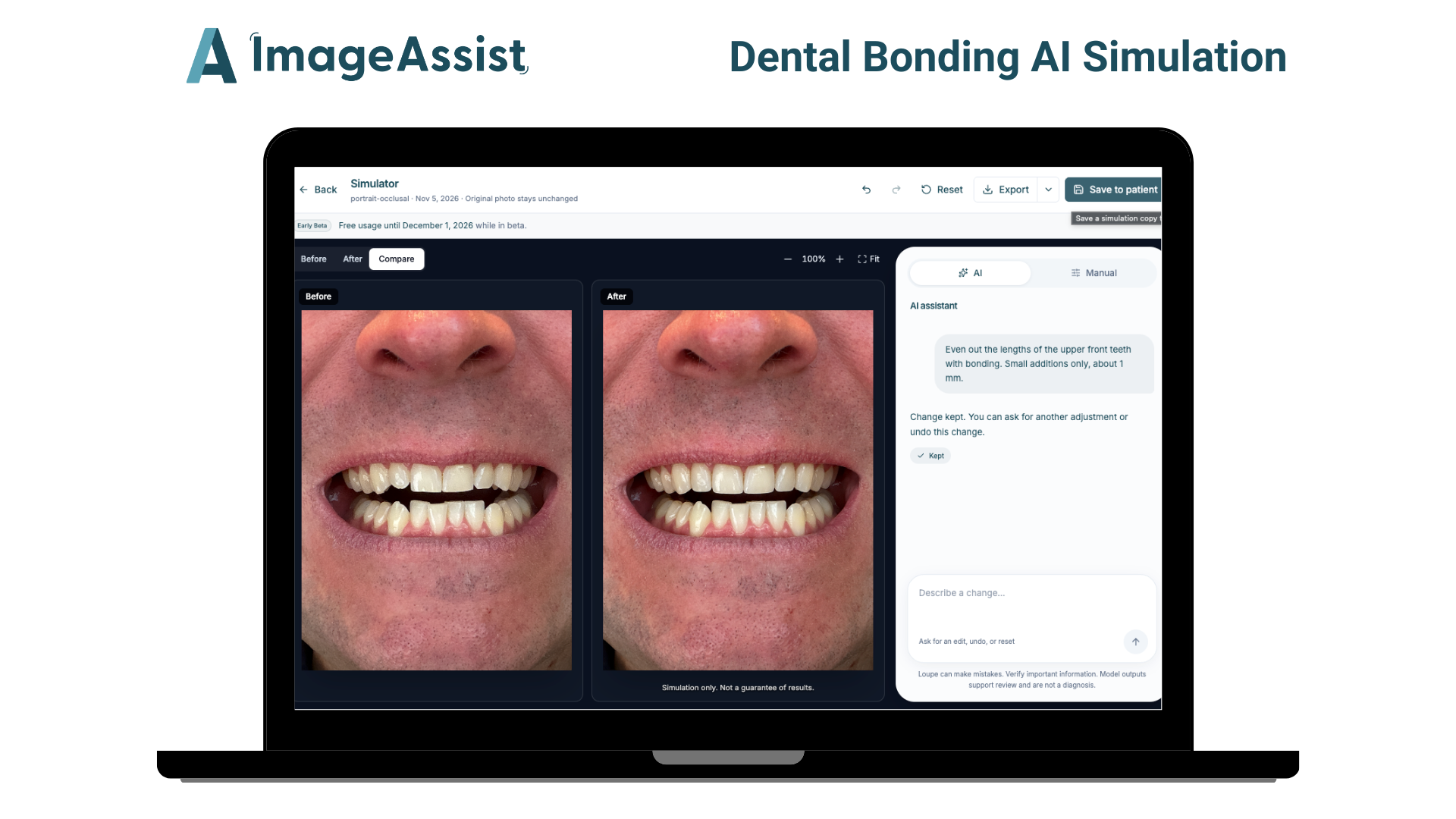
Dental bonding. Show chips repaired, small gaps closed, and uneven edges evened out. Bonding changes are small, so the simulation stays small.
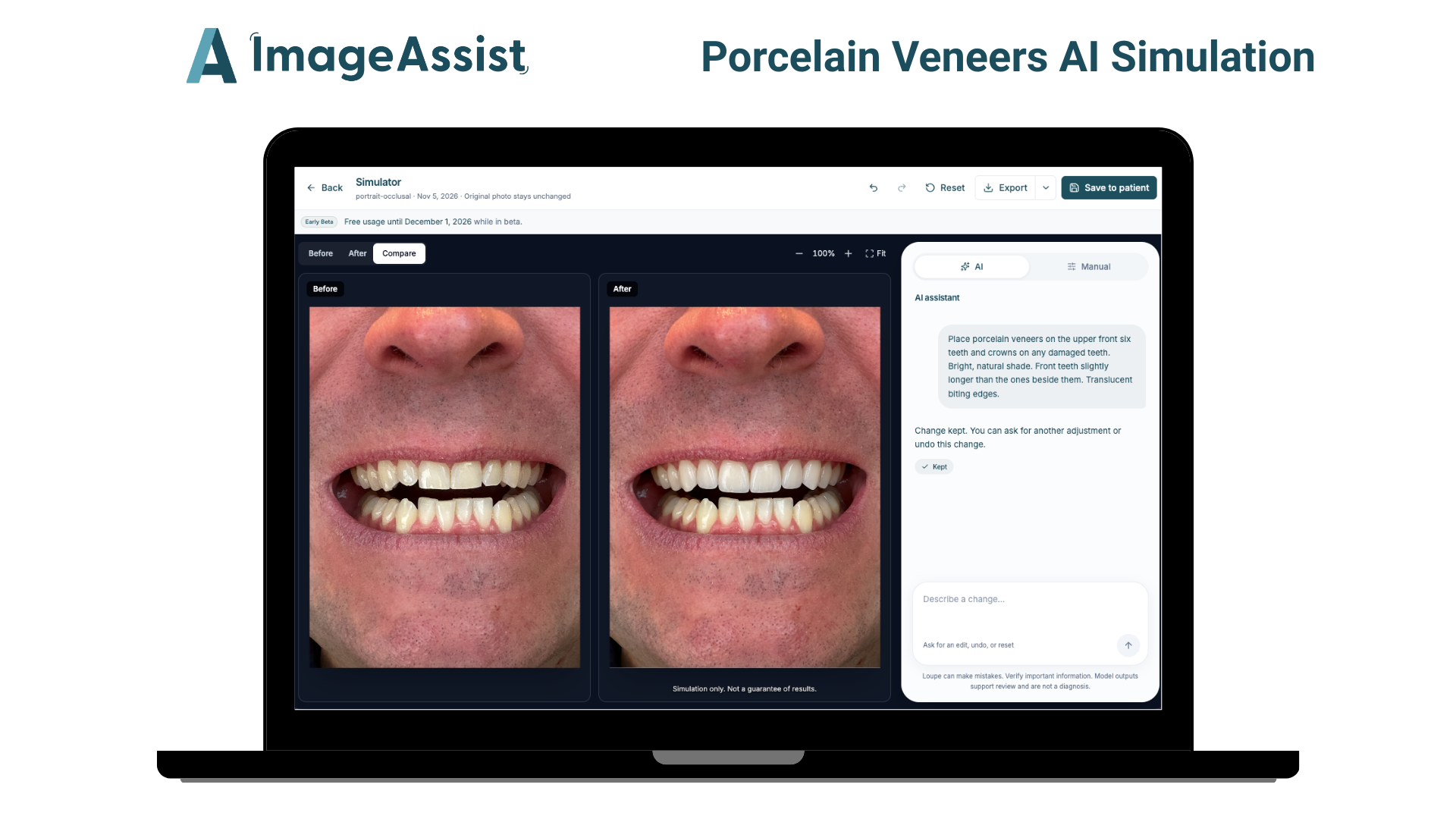
Porcelain veneers. Veneers change shape, length and shade together. Show a natural shade, translucent biting edges, and a smile line that follows the lower lip.
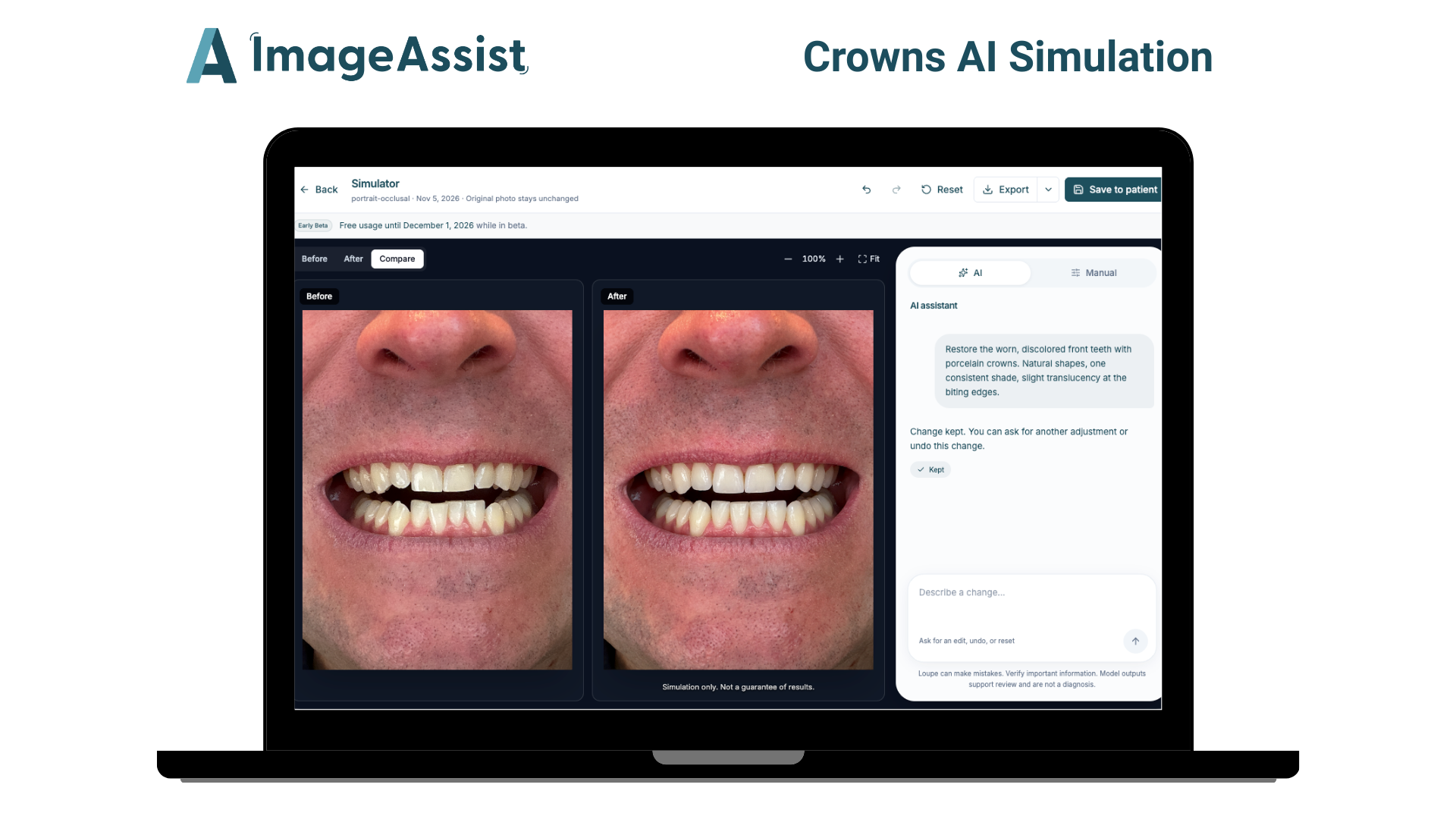
Crowns, bridges and implants. Show a single crown that matches its neighbor, a bridge that closes a gap, or an implant that fills a missing tooth with a tooth that looks like it grows from the gum.
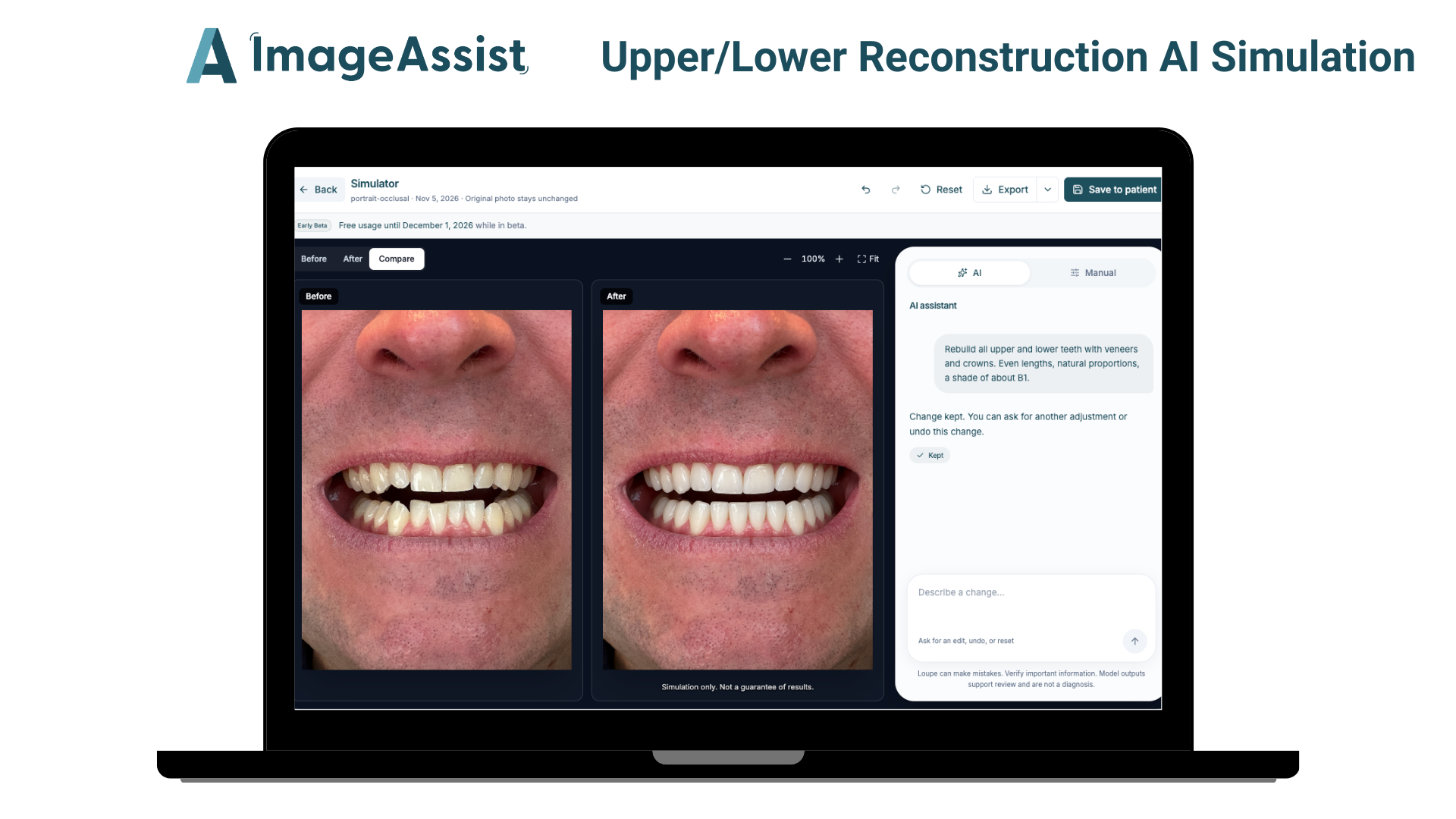
Full reconstructions and dentures. These are the biggest changes a patient will see, and they can change how the lips are supported. Show patients what a new smile looks like on their own face.
What a good simulation looks like
A simulation only helps if the patient believes it. We check every Simulator result against four things:
- Right teeth. Only the teeth you named change.
- Right shade. Whitening looks like a believable jump, not paint.
- Natural detail. Real teeth aren't one color. They're slightly warmer near the gum and translucent at the edge. Each tooth keeps its own edges.
- Same person. Lips, skin and face shape stay the same, unless the treatment changes lip support.
Teeth that look uniform, opaque or paper-white fail the check. Patients can tell.
Use it in the consult
Show the Simulator while the patient is in the chair. Start with a clear photo of their smile. Describe the plan. Let them see it, react to it, and ask questions. Then adjust it together.
The patient leaves the visit having seen the plan, not just heard it.
A simulation, not a promise
Simulated images are illustrations of a possible plan. Results vary. Diagnosis and treatment decisions stay with the dentist.
Part of ImageAssist
The Simulator runs inside ImageAssist, the HIPAA-compliant clinical photography platform. Capture, annotate, organize and compare patient photos in one place, with EMR integration, and keep photos off personal phones.
The Simulator is free in beta through Dec 1 for practices that book a demo.
Want to see it on one of your own cases? Book a demo and we'll show you.
Frequently asked questions
Is the Simulator HIPAA-compliant?
It runs on ImageAssist's HIPAA-compliant infrastructure, and patient photos stay inside the platform.
Which treatments can I show?
Whitening, Invisalign, bonding, veneers, crowns, bridges, implants, dentures and full upper reconstructions.
Does the Simulator replace treatment planning?
No. It's a decision-support tool. It helps patients picture a plan. The clinical decisions stay with you.